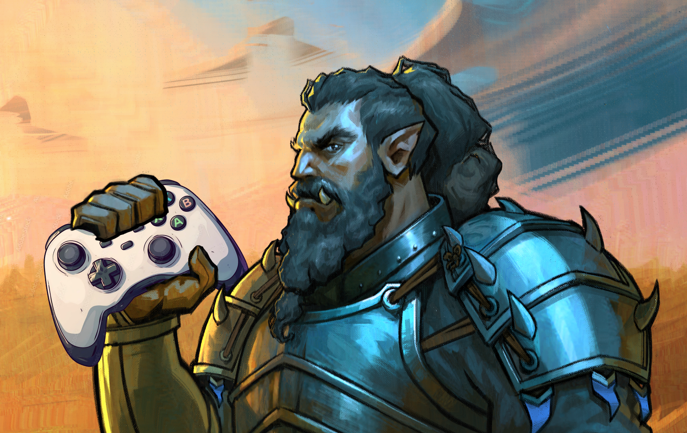
Adding controller support to a game that was not designed for it in mind can be challenging. For me, the easy part was to get the actual gameplay working. The part that took many weeks was updating my menus and UI to fully support the controller. Here’s some tips and tricks on how to make this transition as smooth as possible.
Quick Wheel
Ardenfall’s quickslot system relies on pressing keys 0-9, so I added a quick wheel that works both on controller and keyboard.
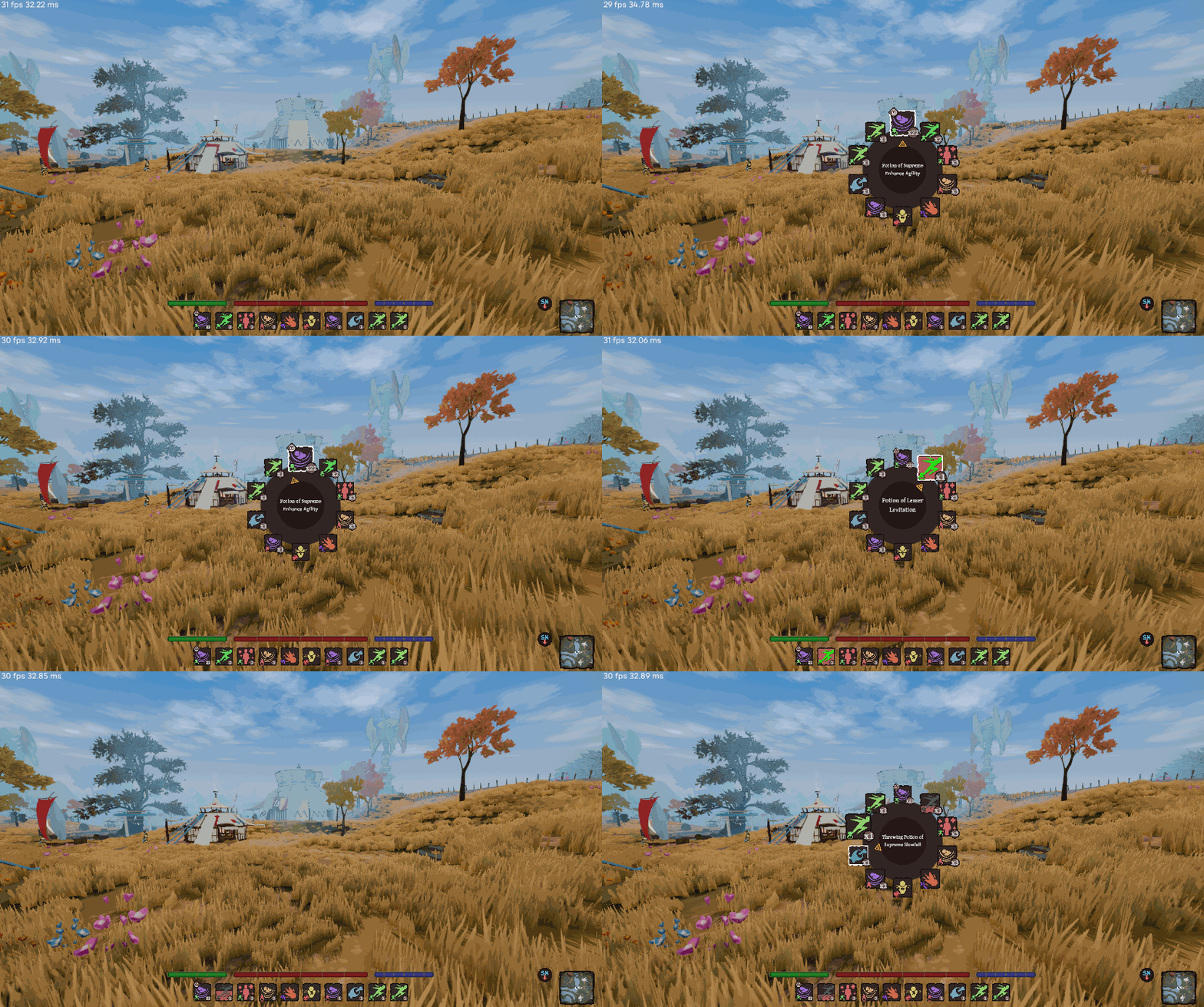
Quick Wheel with Controller
I also added a button on the controller assigned to the first quickslot element by default. This shows up on the quick wheel and the quickslot bar. (Later I plan on adding support to hide that quickslot bar when using controller, at least by default).
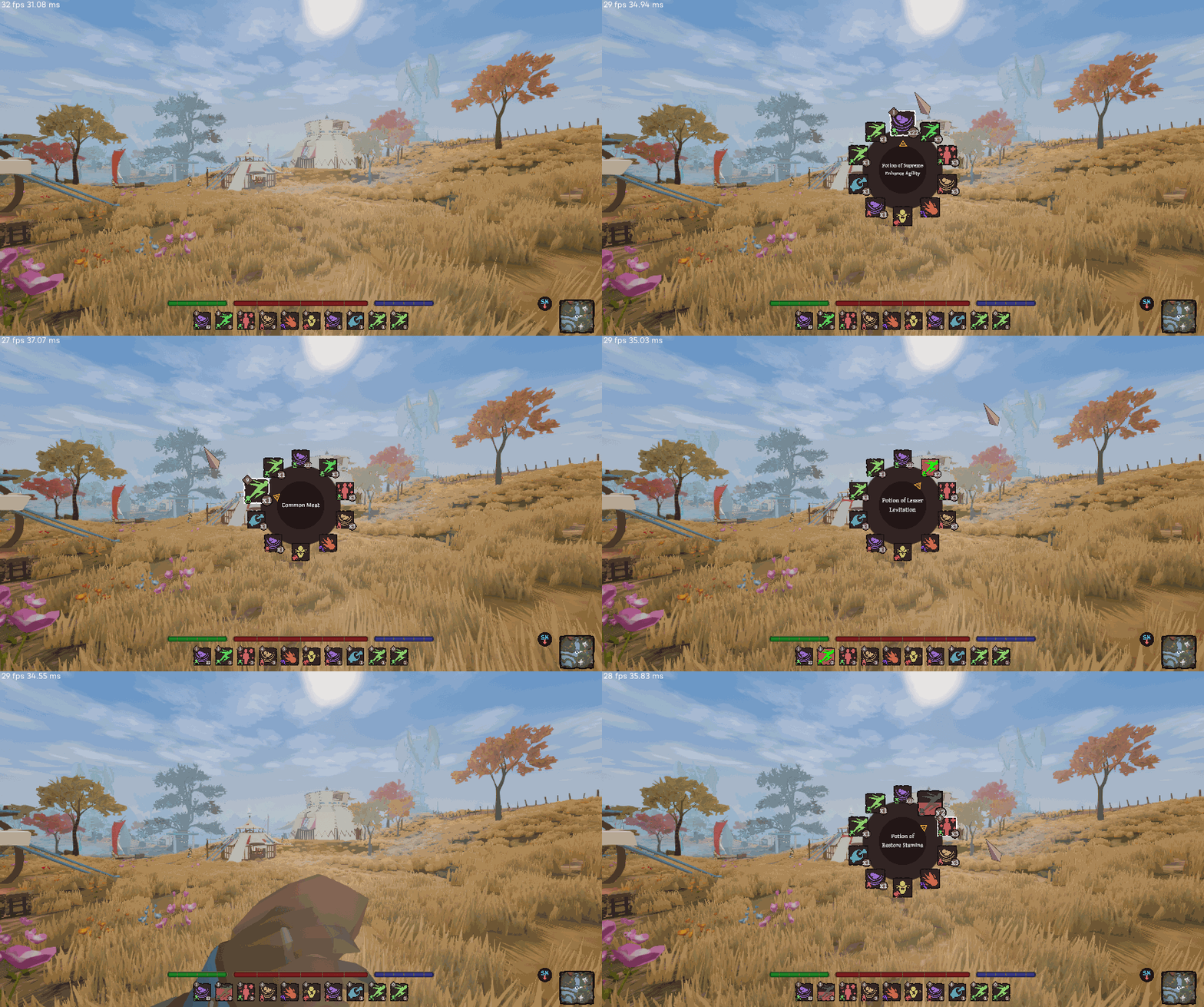
Quick Wheel with Keyboard
It’s actually quite an improvement for keyboard users – moving your hand to the ‘9’ key is no fun, but holding G and clicking? Fast! I made sure to make the mouse position automatically above the top item.
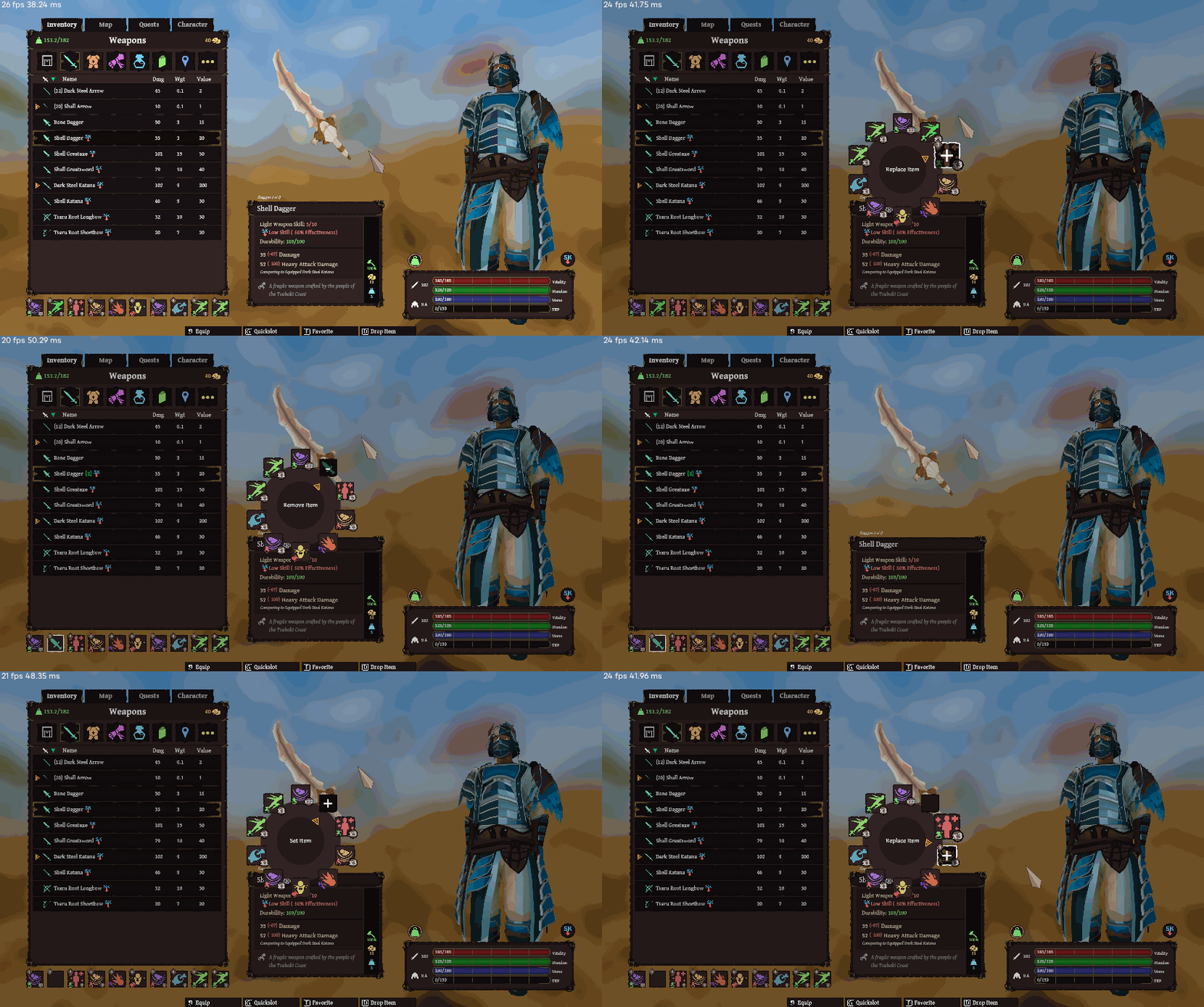
Adding/Removing Items with Quickwheel
UI Selection
If you’ve stuck to Keyboard and Mouse in your Unity development journey, then you probably have little knowledge on the concept of “UI Selection”. A selected UI element can be ‘Submitted’ by the controller or keyboard (ie pressing ‘X’ on a PS5 controller to ‘submit’ a button), and navigated to other elements.
This is the key thing to remember: You (almost) always need to have a UI element selection at all times. If you expect the user to be navigating a menu, then you need a selection. No selection means no navigation, no clicking, nothing.
Auto Selection
I made a component called ‘Auto Selection’ that simply set the current selection to itself on enable. I also included a toggle that only does this when there is no active selection.
I placed this component wherever I wanted the initial selection to be in menus. Usually the top element.
Sometimes I couldn’t rely on this, and would need to have special code select elements on enable / menu creation.
Hovering / Selection
Supporting both mouse + keyboard and controller introduces a complication: the user can use the mouse to click somewhere, deselecting the current element, and then switch to controller, finding themselves without a selected object. Also, hovering and selecting are two separate things in Unity, meaning you can hover over stuff, but the controller is still selecting something else!
The first thing I did was make sure that hovering and selecting are one and the same. I made a component that ensures whenever the element is hovered over, it also selects it. I also of course ensured all buttons swap their texture when selected (and therefore hovered).
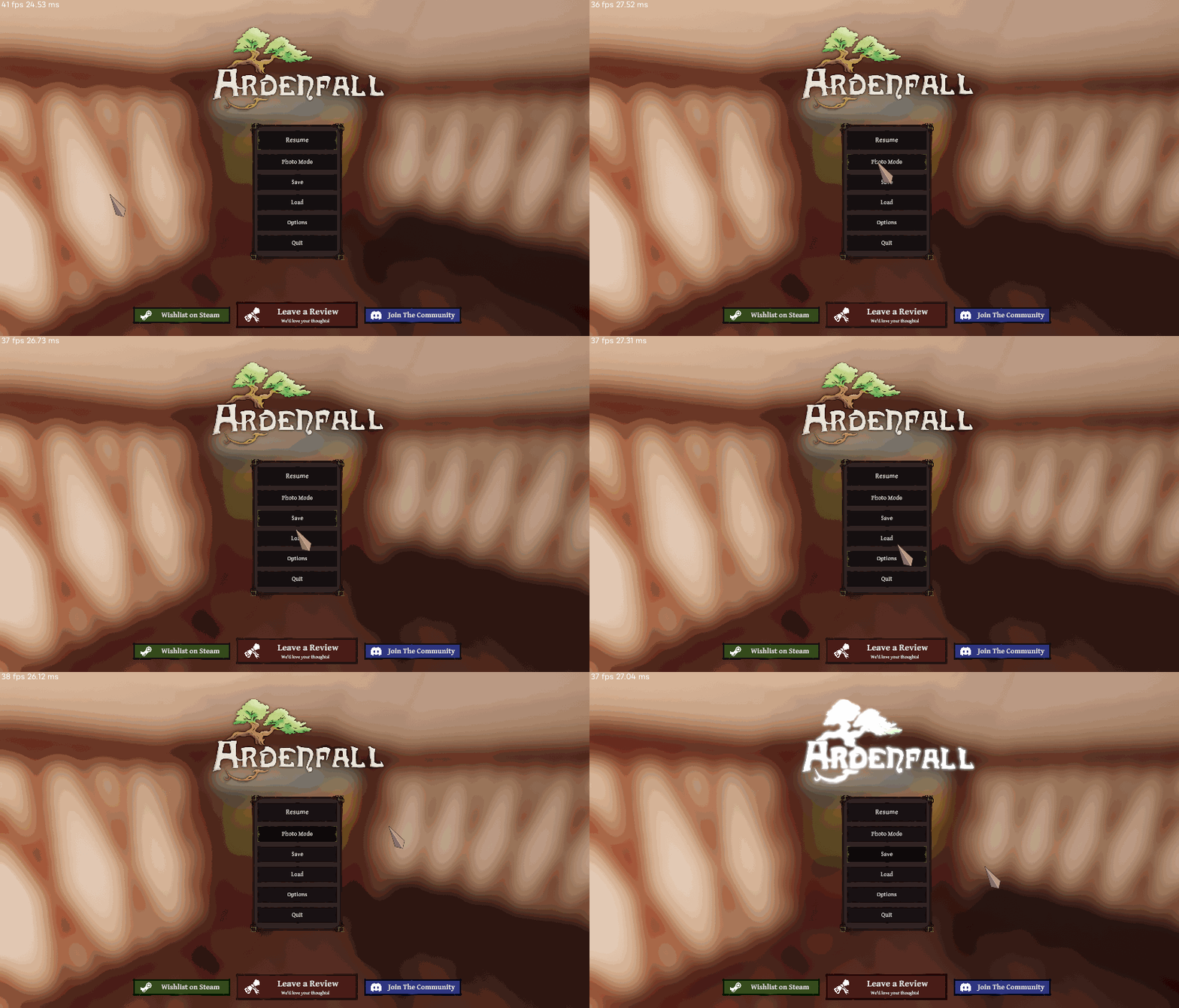
Hover and Selection become the same thing in ardenfall land
Selection Fallback
In the case of items being deselected, (most commonly due to the mouse clicking somewhere then switching back to controller) each menu also has a fallback method to select an object again.
By default, the menu will keep track of the last selected object, and if there is no selection, it will simply reselect that previous object (assuming it is enabled in the hierarchy). In the case that the previous selection is destroyed or disabled, it will fallback again to select a predefined object.
Selection Parent Visual
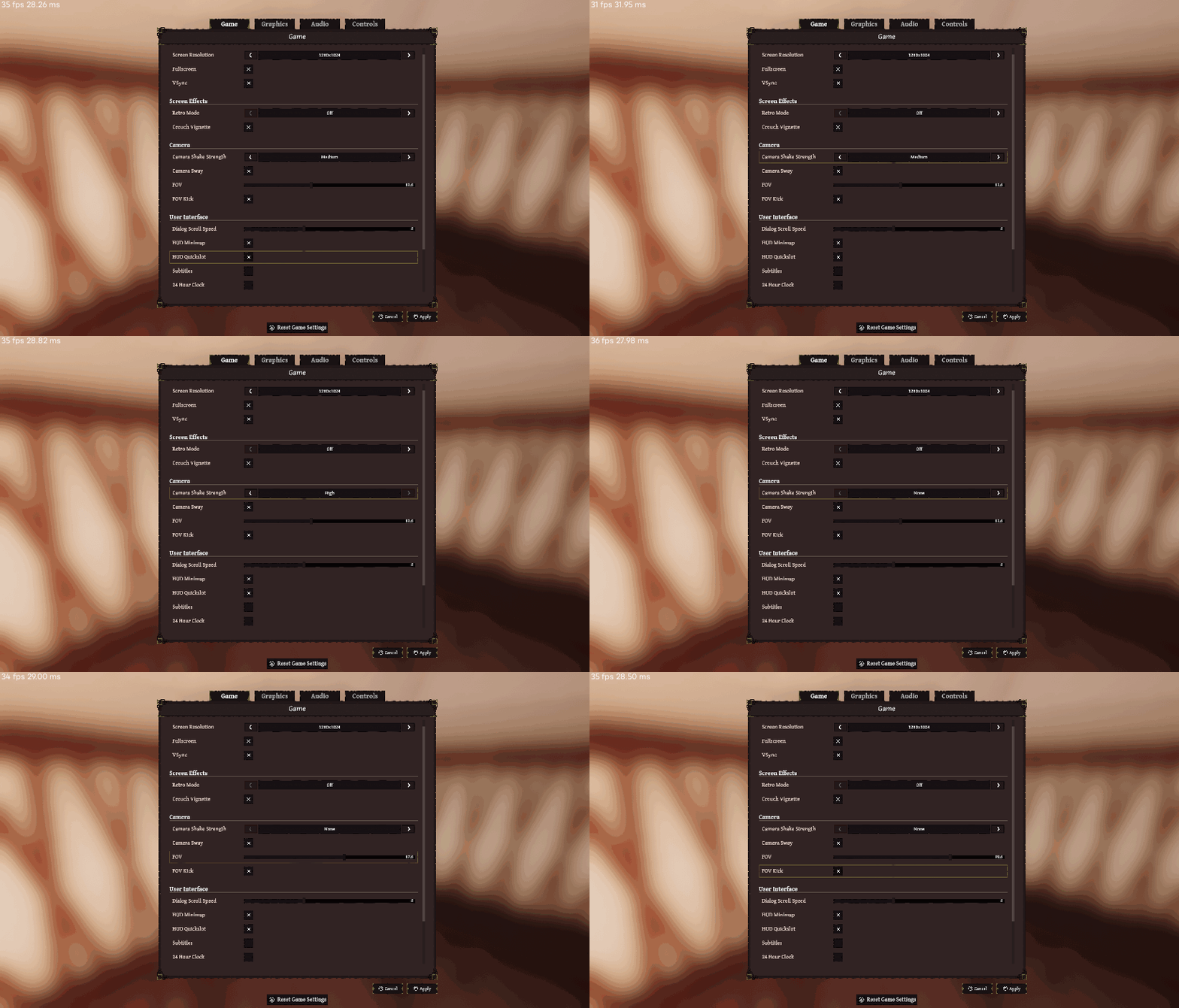
One common problem is communicating what elements are currently selected. Not a problem for slots or buttons, but what about various options in the settings menu, or in the creation menu? For these, I made a very simple component that enables a selection image whenever a child of that component is selected. This adds a little box around selected stuff.
UI Navigation
Unity has its own automatic navigation support, which is… okay, I guess. I however found that in 95% of cases I had to define my own navigation. Luckily this was pretty straight forward. My most common script was a parent script that would simply scan all children and make them vertically connected. Other more complex navigation was handled manually.
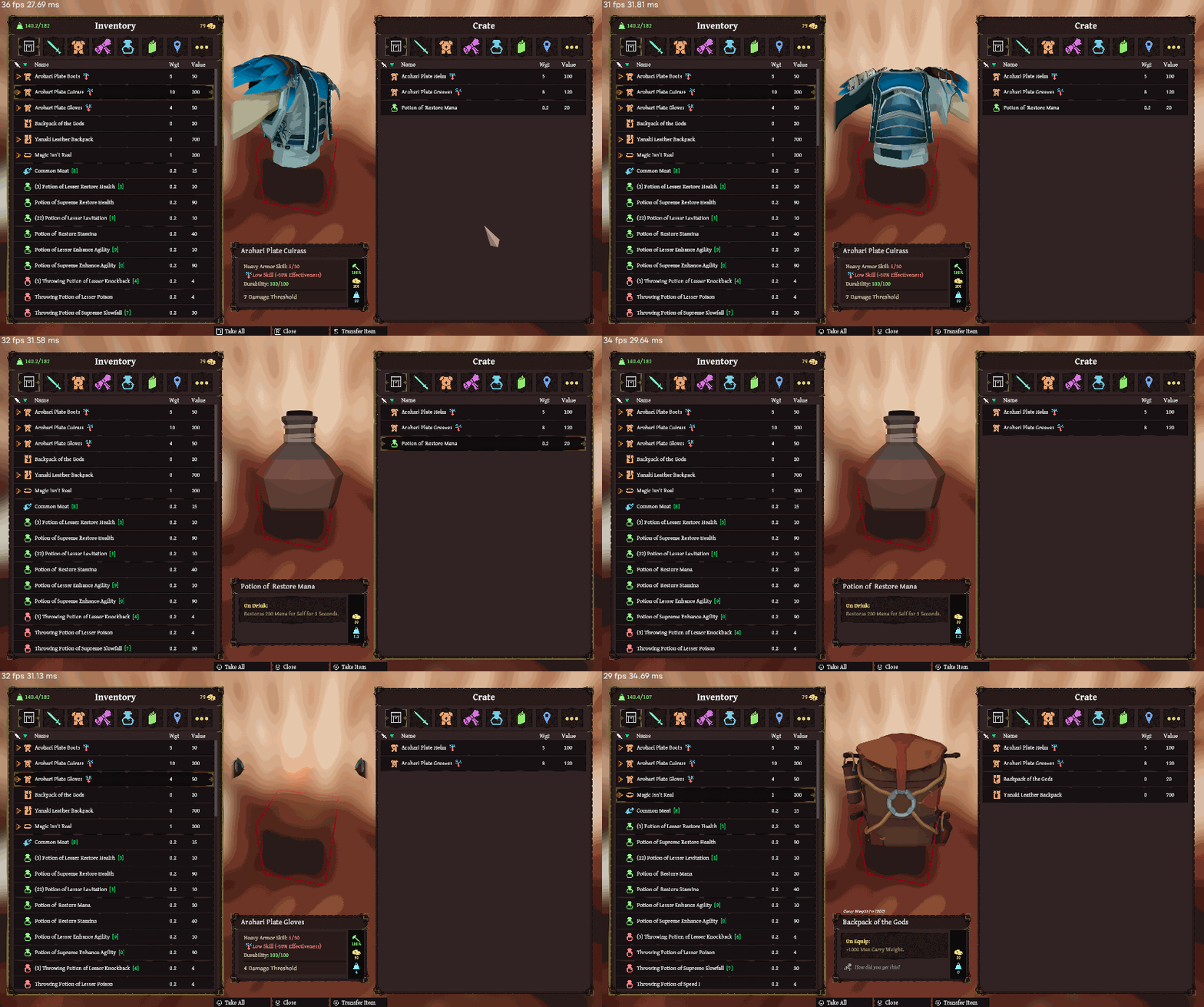
Inventory Management had Navigation completely controlled manually, instead of relying on Unity’s navigation.
UI Auto Scrolling
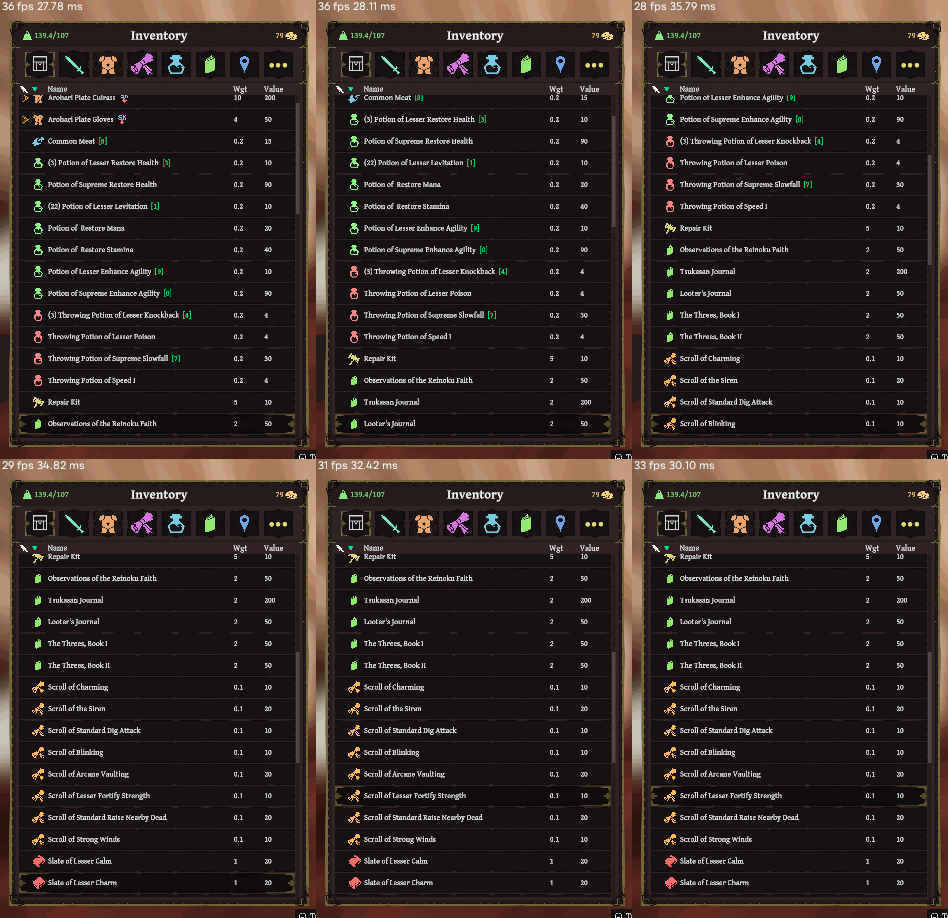
Another complication you may run into with controller support is unity’s lack of auto scrolling – ie the player is navigating through a menu inside a scrollview, and selects an item outside of the view.
I also made it so auto scrolling is only active when the current device is controller.
You can see my Auto Scrolling script here, which has any input system specific logic stripped out.
One important detail is the concept of “auto scroll at top”, which basically means “when you select the top item, force the scrollbar to go to the very top”. This is important for say, dialog in ardenfall – it ensures that when the player scrolls to the top option, it’ll auto scroll to reveal the dialog text. Otherwise you’d lose the ability to see that text!
Glyphs
Up until recently, I had avoided using any sort of icons for input, instead simply displaying the name of the input via text. This works fine for keyboard/mouse, but gets less friendly for controller. Thus, I decided to add support for icon glyphs, both as individual UI images and also as sprites within text.

Glyphs need to change whenever switching between devices
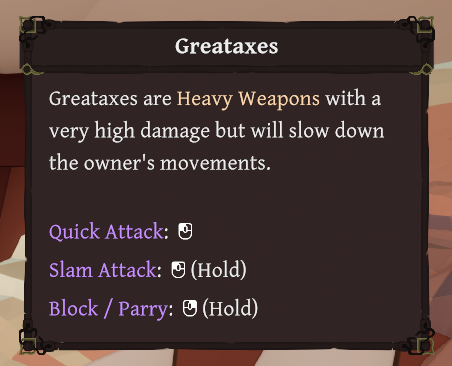
An example of Glyphs within text.
Icon Lookup
The core of Glyphs are the lookup tables. Each glyph set / controller has a map of input names and icons. Whenever an action is requested, I convert this action into an input (based on the currently active input method), and then present the icon.
Naturally anywhere these icons are used also hook into a message to update themselves whenever the active input changes.
Text Mesh Pro Spritemaps
Text Mesh Pro can display sprites within text. This is done via a spritesheet. Every text element can have up to one spritesheet.
Anywhere I want to display text with a icon, I simply include this: ‘input:jump’, for the input jump icon.
Whenever I detect an input text, I will check if I already have a sprite in the sprite sheet for the active device. If not, I will grab it from the lookup, copy it over to the spritesheet, and then update the spritesheet.
 var glyphMetrics = new GlyphMetrics(
 glyphTexture.width * rect.width,
 glyphTexture.height * rect.height,
 0,
 glyphTexture.height * rect.height * 0.8f,
 glyphTexture.width * rect.width);
 var glyphRect = new GlyphRect(
 Mathf.FloorToInt(glyphTexture.width * rect.xMin),
 Mathf.FloorToInt(glyphTexture.height * rect.yMin),
 Mathf.FloorToInt(glyphTexture.width * rect.width),
 Mathf.FloorToInt(glyphTexture.height * rect.height));
 var spriteGlyph = new TMP_SpriteGlyph((uint)index, glyphMetrics, glyphRect, 1, index);
 glyphSpriteAsset.spriteGlyphTable.Add(spriteGlyph);

 var glyphCharacter = new TMP_SpriteCharacter(0, spriteGlyph);
 glyphCharacter.name = map.Item1;
 glyphSpriteAsset.spriteCharacterTable.Add(glyphCharacter);
Adding a new sprite at runtime
Side note: unless you want to support some sort of crazy dynamic icon stuff / steam input glyphs, I don’t see why you can’t just build these spritesheets during edit time. Just include a tool that packs them all together, and boom – no fancy requesting / hot updating of spritesheets.
Selectable Entry Widget
A handful of places in my UI used dropdowns, which are very unfriendly for controllers. I replaced it with a simple selectable entry widget instead.
It overrides the ‘OnMove’ method to ensure the user can switch between the entries by clicking the left/right navigation buttons. This does mean the widget doesn’t really work when there are widgets to the left and the right, but that’s life for ya.
And speaking of that, here’s an exact example of that in Ardenfall. Since you can’t really navigate left and right, the user has to instead just navigate downwards to move to the next column. Ah, UX.

Steam Onscreen Keyboard
I also added support for Steam’s onscreen keyboard. It only appears in Steam’s Big Picture mode and on the Steamdeck. Not sure why it’s not supported in the normal mode, but it is what it is.
To make it work, I had to make the text input have a parent that was a Selectable. This parent is what would be navigated to as you navigate throughout the menu.
To actually edit the text input, you have to click ‘submit’. This overrides the selection to be the actual textbox now. This object has navigation disabled, and I also disable all other input (other than ‘back’ on controllers).
And of course, when you select the actual text field, it automatically opens Steam’s onscreen keyboard. Easy enough.
Input Suppression
This is unrelated to UI, but shhh it’s still an interesting tidbit. I ran into an issue with Quick Looting – when you look at a container, a little menu pops up, letting you scroll and take items. The problem is with the scrolling. Naturally scrolling would use the Dpad, but other features are already bound to that, and due to remapping who knows what will be bound! I needed some way to stop any dpad related input from being triggered whenever this menu appeared.
The solution was quite simple – scan the gameplay layer for any action with dpad in the binding path, and then whenever the menu appears, disable those actions. Clean and simple!
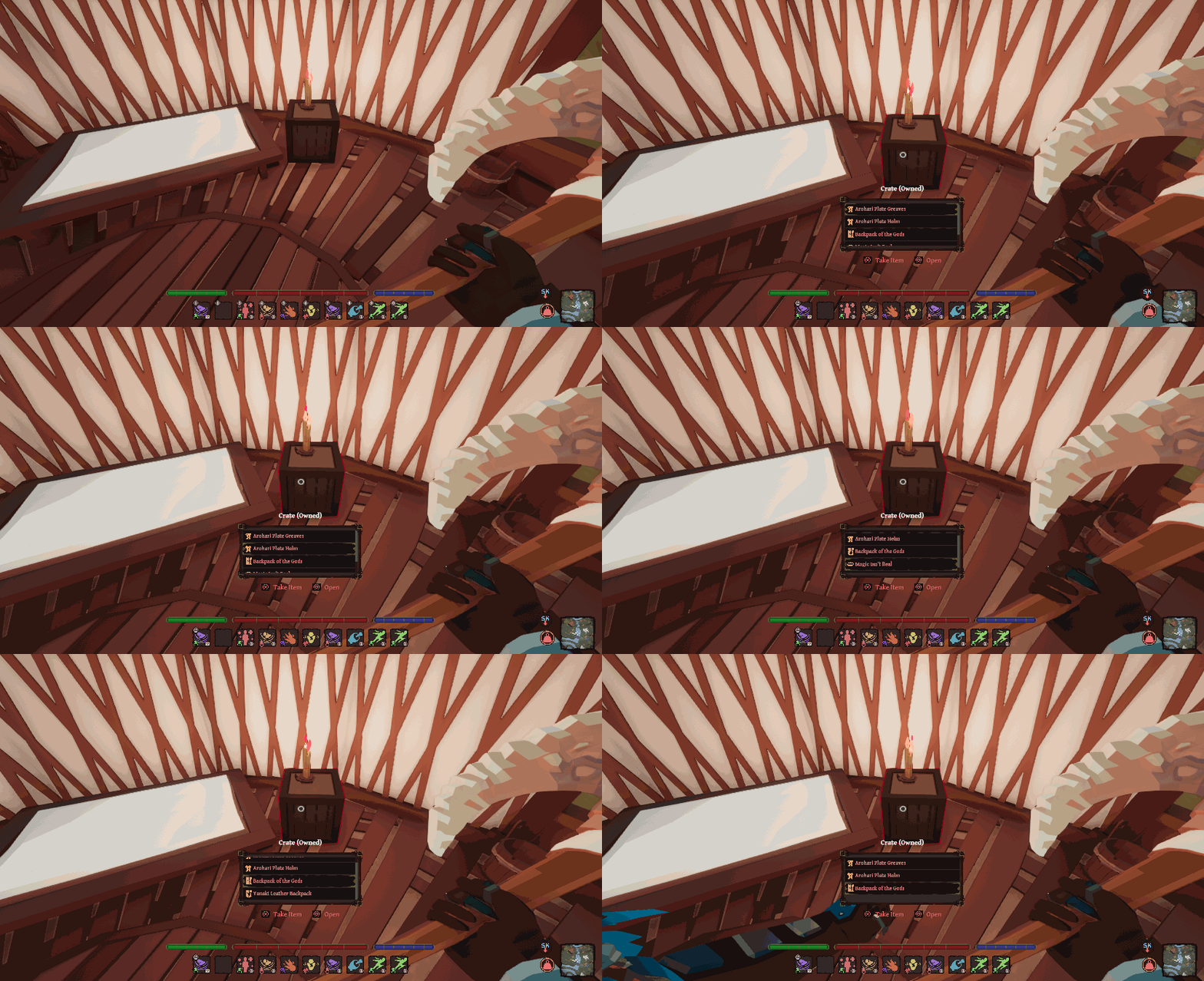
Any actions bound to the Dpad need to be disabled when interacting with the quick loot menu.
That’s It
Implementing controller support UI in unity was grueling work, but it turned out both great for controller players AND keyboard/mouse users. If you’re planning on converting your existing UI to controller, plan for some pain, surprises, and unique solutions.